Umbraco ships with search built in. It's called Examine, it sits on top of Lucene.NET, and it works out of the box; point a query at the ExternalIndex and you can search published content.
The trouble is that "works" and "good" are two different things. Out of the box, Examine uses FullText fields for values unless you configure otherwise. That's perfect for matching words in body copy, and the wrong fit when you need to sort by date, filter by a number, or make the right result come back first.
Tuning the index is how you close that gap. Here's what moves the needle.
First, know which index you're tuning
Umbraco gives you three indexes by default:
ExternalIndex: published, unprotected content and media. This is normally the index you want for public-facing content search.
InternalIndex: used by Umbraco's backoffice search. It can contain content that isn't suitable for public search, including unpublished content.
MembersIndex: used for Umbraco's membership data.
Most tuning happens on ExternalIndex or, when there's a genuine reason, on a custom index you create for a specific job.
Querying the wrong index is an easy way to get unexpected results. If your public search returns content it shouldn’t, first check which index you’re querying.
Field value types: the highest-impact change
By default, Examine uses FullText field definitions unless you configure a different type. FullText fields are analyzed and tokenized for word matching, which is exactly what you want for body copy, and exactly what you don't want for a date or price.
A standard FullText field isn't suitable for proper field sorting or numeric/date range queries.
The fix is to tell Examine the real type of each field. You can do that using the IConfigureNamedOptions<LuceneDirectoryIndexOptions> pattern:
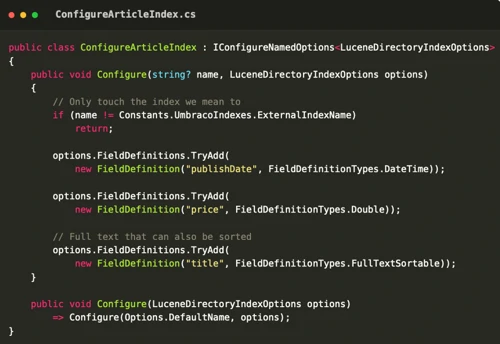
Register it in Program.cs:

Three value types earn their keep constantly:
Integer / Long / Double for numbers you want to filter, range-query, or sort on price, rating, stock count, and so on.
DateTime for anything you sort or filter chronologically
FullTextSortable for text you need to both search and sort, such as a title.
If you only make one change from this whole post, make it this one.
Index only what you search
A lean index can be a fast index, but don't create a custom index simply because you only want to search one document type.
In many cases, the better approach is to keep using ExternalIndex and filter your query by NodeTypeAlias or another appropriate field.
When you genuinely need to control what gets indexed, that's where an IValueSetValidator comes in. It determines whether a given piece of content belongs in the index at all.
Umbraco's ContentValueSetValidator covers many common cases, including published-only content, protected content, and restricting indexed content to a particular part of the tree.
For example, conceptually:
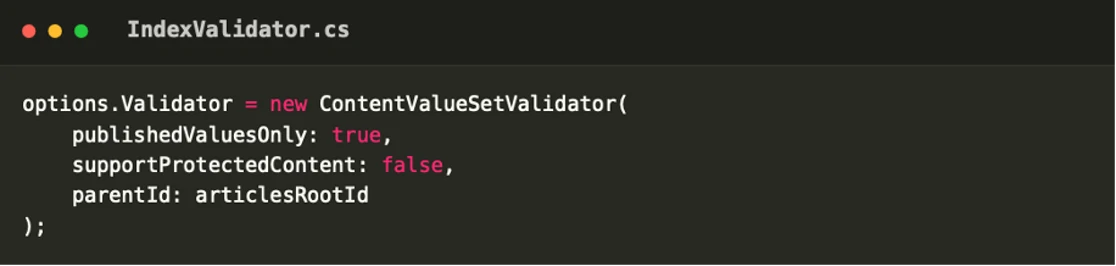
The exact constructor and available parameters can vary by Umbraco version, so treat this as a configuration pattern rather than a copy-and-paste example.
The result is an index that contains the content you intend to search, rather than everything simply because it exists.
Computed fields: index what isn't on the node
Sometimes the thing you want to search doesn't exist as a single property.
You might want one combined "searchable text" field, a flattened category name, or a derived flag.
TransformingIndexValues lets you modify a ValueSet as content is being prepared for indexing. That gives you a place to add fields that don't exist directly on the content item.
For example:
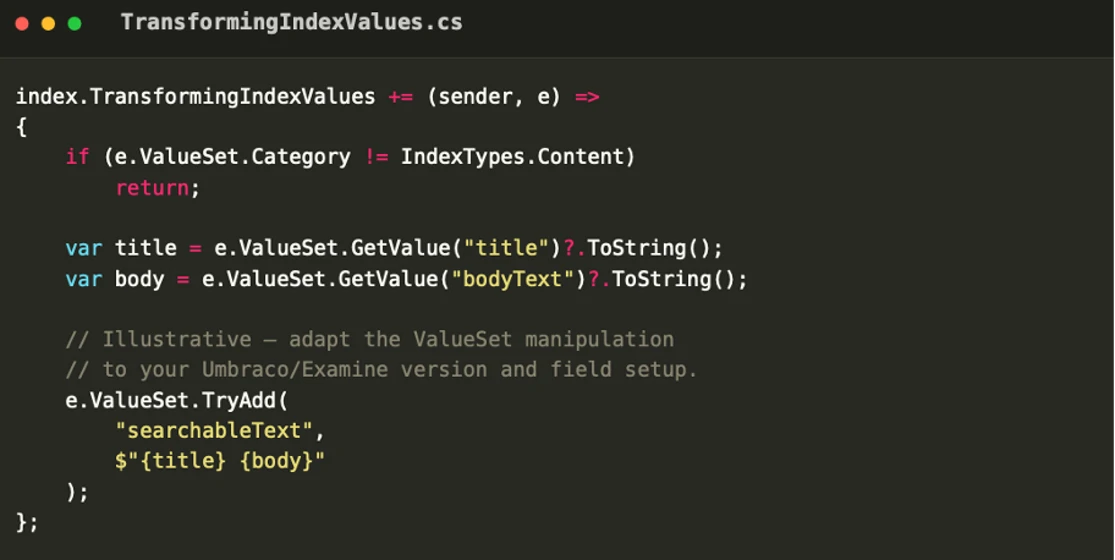
Now a single query against searchableText can cover several properties, and you control exactly what's searchable rather than hoping the default field configuration lines up with your requirements.
Analyzer: how text becomes terms
An analyzer decides how a string is broken into searchable terms.
Examine provides sensible defaults for common text-search scenarios, and for most straightforward English content you won't need to change them.
You reach for a different analyzer when the default behavior doesn't match your data: exact matching for certain codes or identifiers, different tokenization requirements, or specialized handling for multilingual or otherwise unusual content.
For example, an index can be configured with a Lucene analyzer such as:

The important point isn't which analyzer you choose, it's why you're changing it.
An analyzer affects how text is tokenized and therefore what terms are available to your queries. Change it only when you can name the problem it solves. Otherwise, the defaults are usually the right place to start.
Relevance: tuning ranking, not just indexing
Tuning isn't only about what's in the index; it's also about what comes back first.
Search results are normally ordered according to Lucene's relevance scoring. That means you can influence the experience by giving more weight to fields that matter more.
A match in the title, for example, should usually matter more than the same word buried deep in body copy:
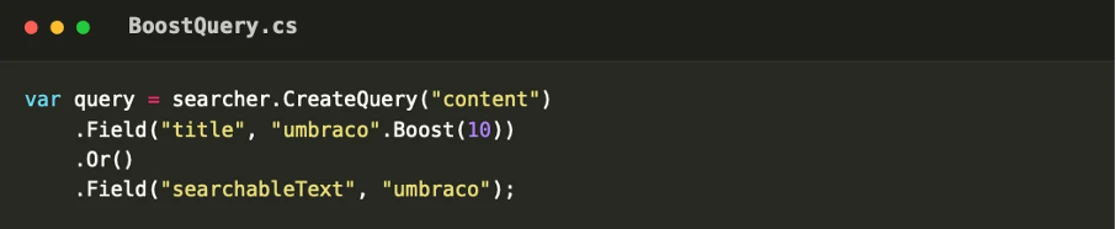
Use boosts deliberately. The goal isn't to make everything important; it's to make the genuinely important signals matter more.
Also remember that relevance scoring and explicit field sorting are different things. Once you explicitly sort by a field such as publishDate, you're no longer simply relying on Lucene's relevance score to determine the order.
Rebuild after you change how things are indexed
One catch that trips everyone up: changing how a field is indexed doesn't retroactively rewrite documents that are already sitting in the index.
If you add a field definition, change an analyzer, or change what gets indexed, you'll generally need to rebuild the affected index before the existing content reflects the new configuration.
You can rebuild indexes from the backoffice through Examine Management, or as part of a deployment process when that fits your architecture.
If a change "isn't working," a missing rebuild is one of the first things to check.
The bottom line
A tuned Examine index can do three things a default configuration can't do as effectively:
Sort and range correctly through appropriate field values types.
Stay focused on the content you need through indexing rules and validators.
Return more relevant results through appropriate field configuration, analyzers, and query-time relevance tuning.
And the rules underneath all of it:
For search, query the index. Don't walk the content tree looking for matches.
Use the published content cache to retrieve and render the content once you have the IDs or results you need.
The tree is for navigating content. The index is for finding it.
Get the index right, and search stops being the slow, frustrating corner of the site and starts being one of the best things about it.